
First time using SharePoint? This guide explains everything you need to know to get started with Microsoft’s collaboration platform.
This guide assumes your IT provider has set up SharePoint for you. We strongly recommend setting up SharePoint properly before you begin using it.
How to Work With Files in SharePoint
SharePoint makes it simple to organise, access and edit files.
Create a File
To create a file in SharePoint, click your document library (called ‘Documents’ by default) in your site menu, then click ‘New’. Choose your preferred file type from the dropdown menu.
Once the document opens, any changes you make will save automatically. You can rename the file by clicking ‘File’ in the document menu, then ‘Rename’.
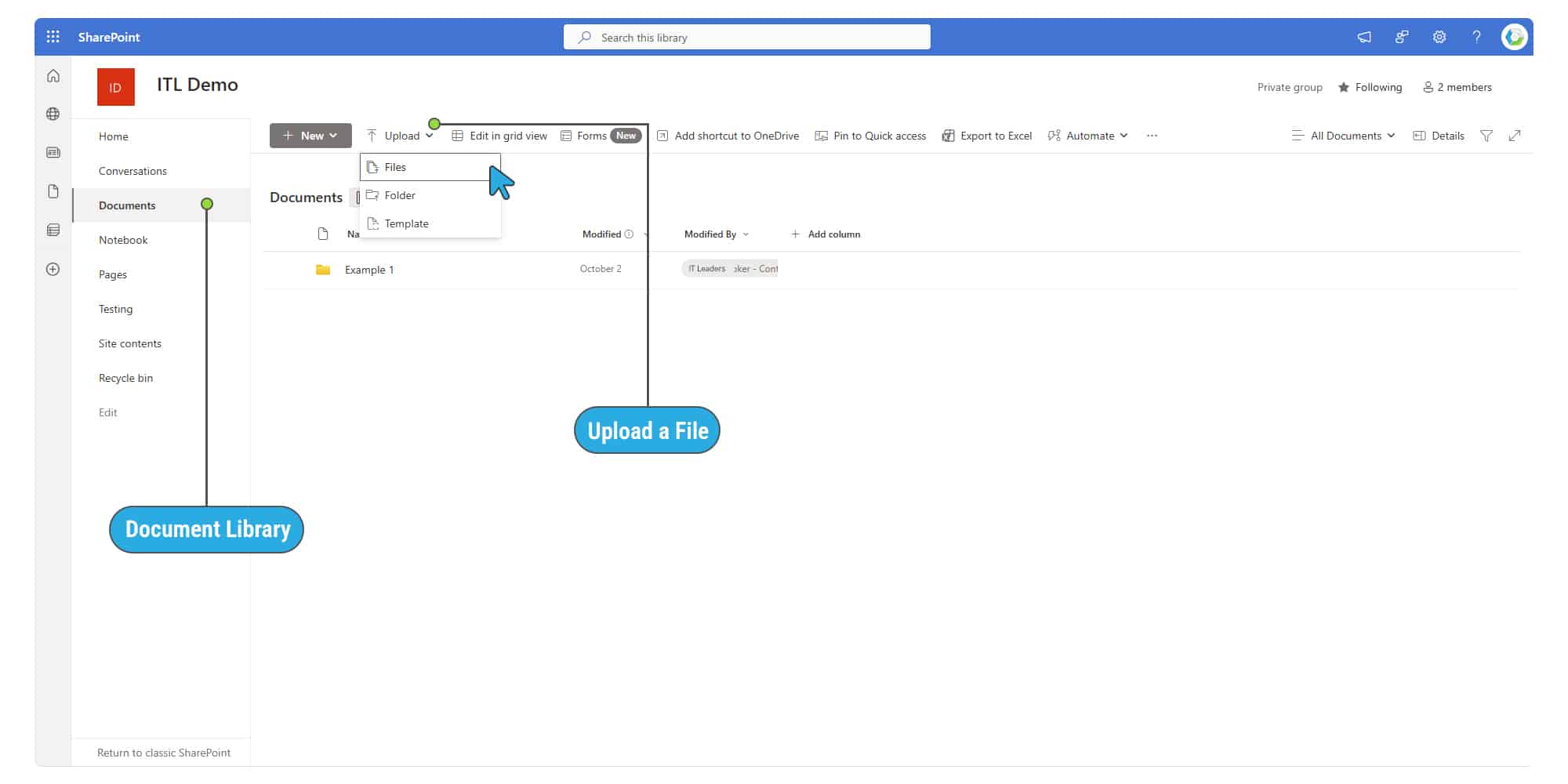
Upload a File
To upload a file, click ‘Documents’ in your site menu, then ‘Upload’, then ‘Files’. Find the document you want, select it, then click ‘Open’.

Share a File
To share a file with other users, right-click on the file within your document library or click the three ‘More actions’ dots that appear when you hover over it.
In the context menu that appears, click ‘Share’.
In the popup that appears, search for the users you want to share the file with. Toggle the pen dropdown to set different permission levels (‘Can edit’ is the default permission), then click ‘Send’.

Share a File With External Users
You can only share a file with external users if your SharePoint administrator has allowed external access. Get in touch with us if you’d like that option enabled for your organisation.
Open a File Outside of SharePoint
To work on a file outside of SharePoint – for example, on the desktop Microsoft Word app – navigate to the file’s location within SharePoint.
Right-click the file, select ‘Open’, then click ‘Open in app’.

Add a Shortcut to OneDrive
Adding a shortcut to OneDrive lets you access SharePoint files directly from your computer, even if you’re offline. Go to ‘Documents’, navigate to the folder you want to create a shortcut to, and then click ‘Add shortcut to OneDrive’. You can now access the files in that folder directly from your computer’s file explorer.
Important: Don’t add a shortcut to your entire site. Only add shortcuts to the folders you actually need to work offline with. Adding too many shortcuts will cause performance problems. You can delete shortcuts by navigating to your file explorer’s OneDrive folder and deleting the folder in question.
How to Save Files to SharePoint
If you’re working on desktop versions of Word or any other Microsoft apps, you can save files to SharePoint without going into SharePoint and manually uploading them.
How to Save Files
In the file you want to save to your SharePoint site, click ‘File’, then ‘Save As’. If you’re logged in with the same account you use to access your SharePoint site, the site should be available under ‘Quick Access’.

If you can’t see your site, click ‘Add a place’ and then enter your Microsoft 365 account login details.
You can then save your file to your site’s document library or Site Contents. You can also create new folders as needed.
Need Help?
SharePoint can be a powerful tool – but only when it’s set up in the right way.
If you need help architecting your file structure, setting up automations, or customising SharePoint for your team, get in touch with us.